UniConverter
UniConverter Online Free
Converter video, audio & image free
Free Try
Wondershare UniConverter Image Converter

Batch NEF to JPG Converter for Multiple Nikon RAW Photos

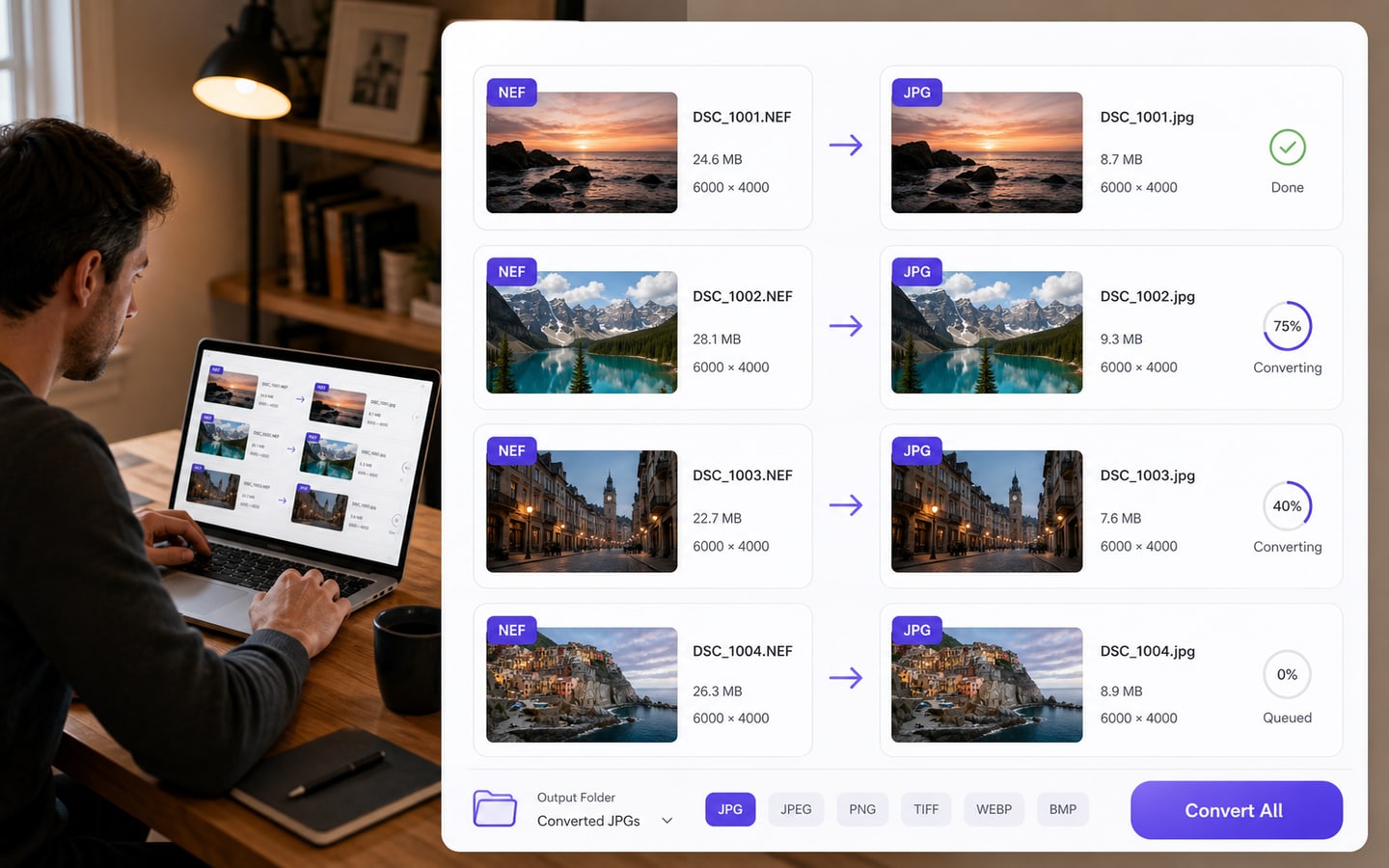
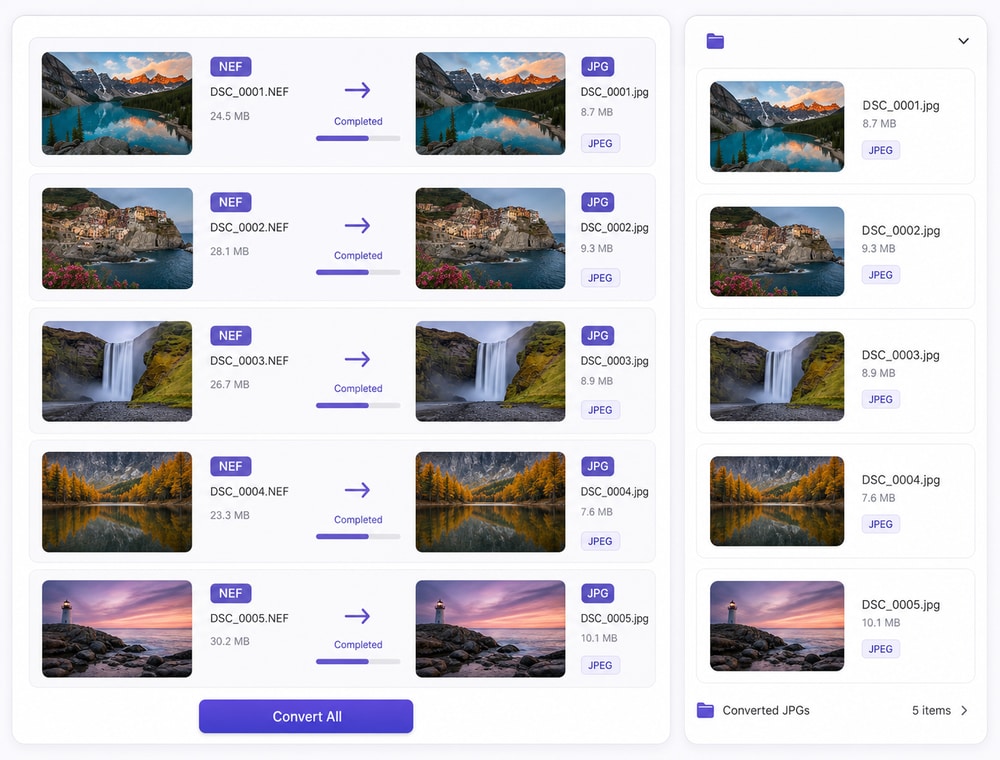
Create JPG/JPEG delivery copies from multiple supported Nikon NEF files in one desktop conversion queue. Add supported files or folders, choose shared output and a destination folder, then review available settings before processing.

  • One organized queue for supported image files
  • Shared JPG/JPEG output and Save to setup
  • Available per-file output and quality-setting exceptions
Available on:

For Windows 11/10/8/7

For macOS 10.13 or later, including macOS 26 Tahoe

4.7Rated on Trustpilot
Batch NEF to JPG Converter for Multiple Nikon RAW Photos
120+Countries
7M+Satisfied Users
1.4M+Subscribers
21M+Downloads

Desktop vs. Online for NEF-to-JPG Photo Shoot Batches

NEF-to-JPG conversion is commonly part of a photography proofing or delivery workflow. Compare how each option handles camera-original collections, transfer overhead, repeat jobs, and supported local acceleration.

Compare the workflow
Recommended for larger jobsUniConverter Desktop
Convenient browser accessOnline Batch Tools
Camera Shoot Delivery
Prepare supported NEF camera-original shoots, proofing sets, and JPG delivery copies in one Desktop queue.
A browser service requires the selected NEF originals to be uploaded before proofs or JPG copies can be downloaded.
Upload & Download
Start with local NEF shoot folders and export the JPG proof or delivery copies directly to a chosen destination without uploading the full collection first.
Total turnaround includes uploading the camera-original NEF files, waiting for server processing, and downloading the JPG proof or delivery copies.
Repeatable Batch Setup
Reuse the Desktop workflow for client proofs, shoot selections, and recurring NEF-to-JPG delivery sets.
Queue size, per-job limits, retained settings, and repeat-job convenience for NEF-to-JPG conversion vary by service and plan.
Local Acceleration
Use Ultra-fast Speed and available GPU acceleration for supported NEF-to-JPG conversion when compatible local hardware is detected.
Browser processing depends on connection speed, server load, and the provider's current processing conditions.
Simple decision:
Choose Desktop when NEF camera originals move through an ongoing proofing and JPG delivery workflow.
Download UniConverter for Desktop

Batch Convert Supported Nikon NEF Files to JPG in One Queue

Wondershare UniConverter Image Converter is a desktop workflow for photographers, studio coordinators, sellers, and contributors who need JPG delivery copies from a Nikon NEF collection. Add supported NEF files or a supported folder to one queue, set shared JPG/JPEG output and a save location, and use available file-level choices when exceptions are needed. NEF and JPG/JPEG availability can vary by operating system and UniConverter version.

Organize a Nikon photo collection before conversion

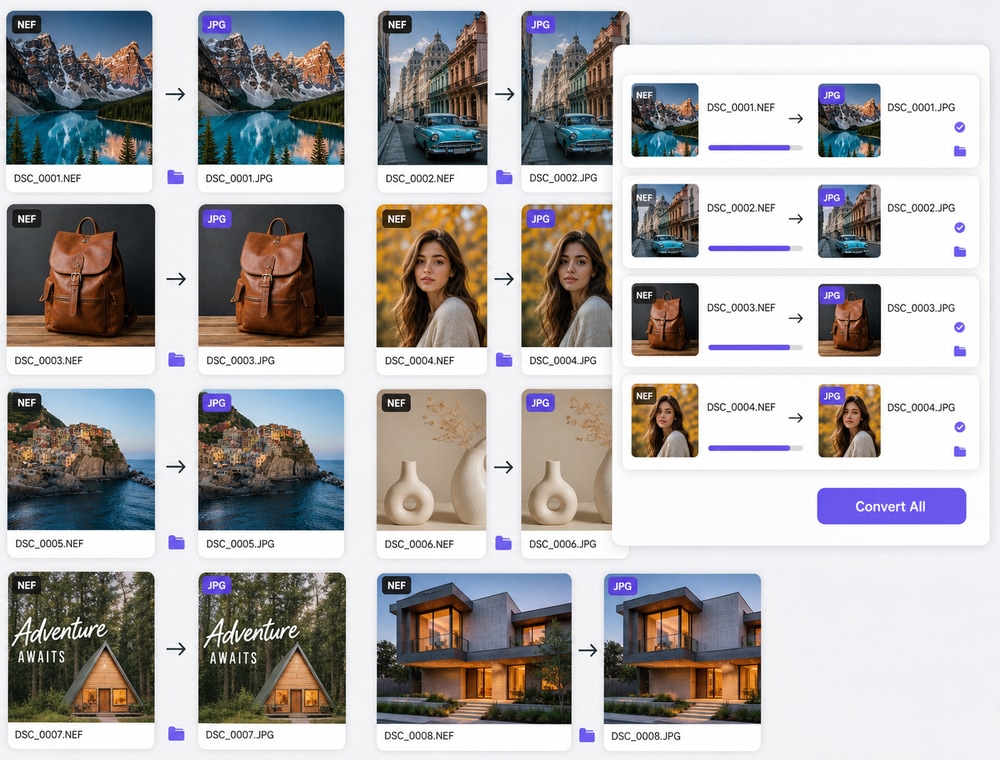
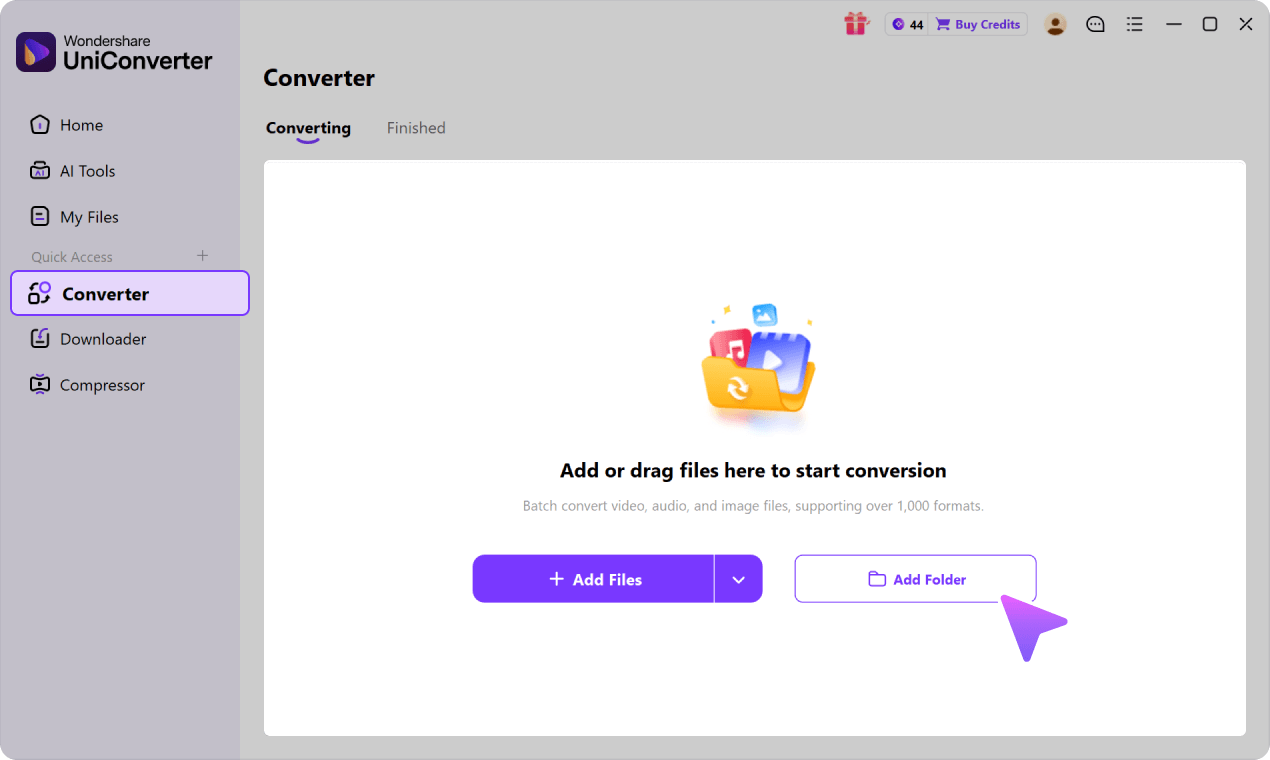
Bring a selected set of supported NEF files into one Image Converter queue instead of preparing images individually.

  • Add multiple supported image files
  • Add a supported image folder when available
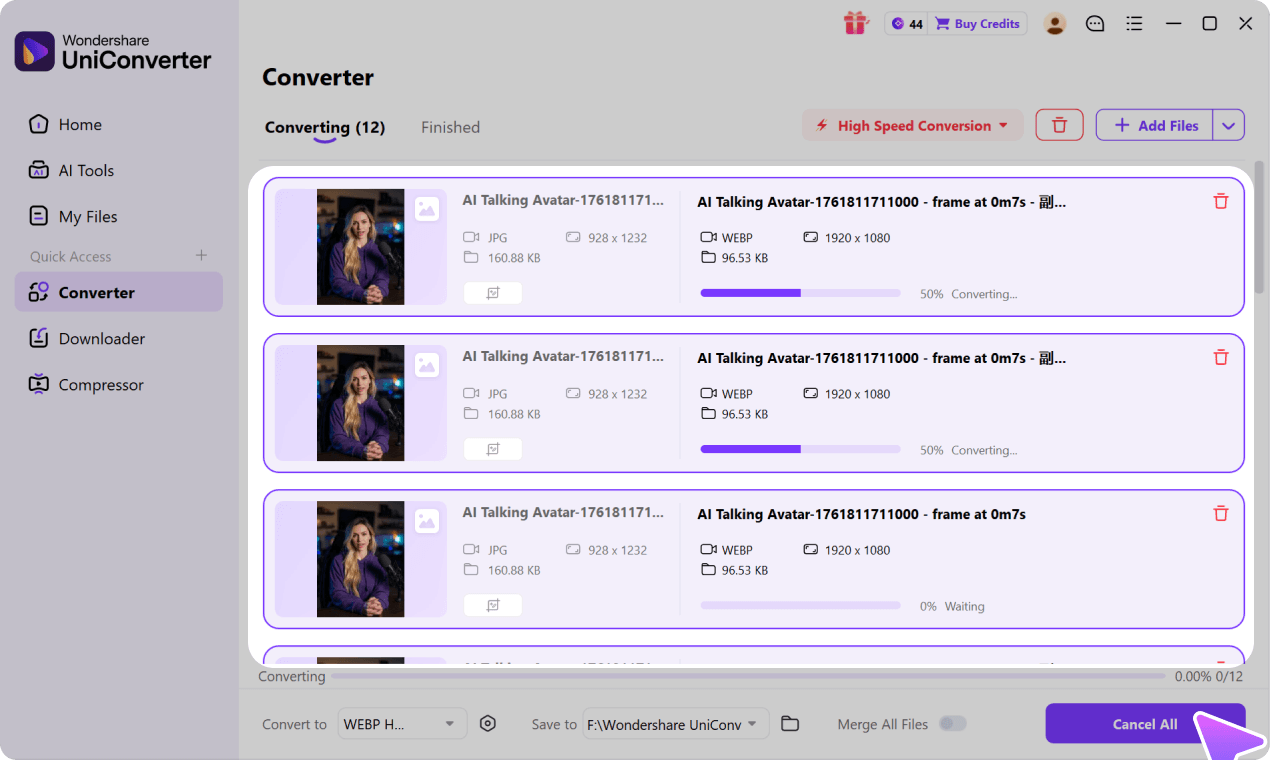
  • Review queued items before processing
Organize a Nikon photo collection before conversion

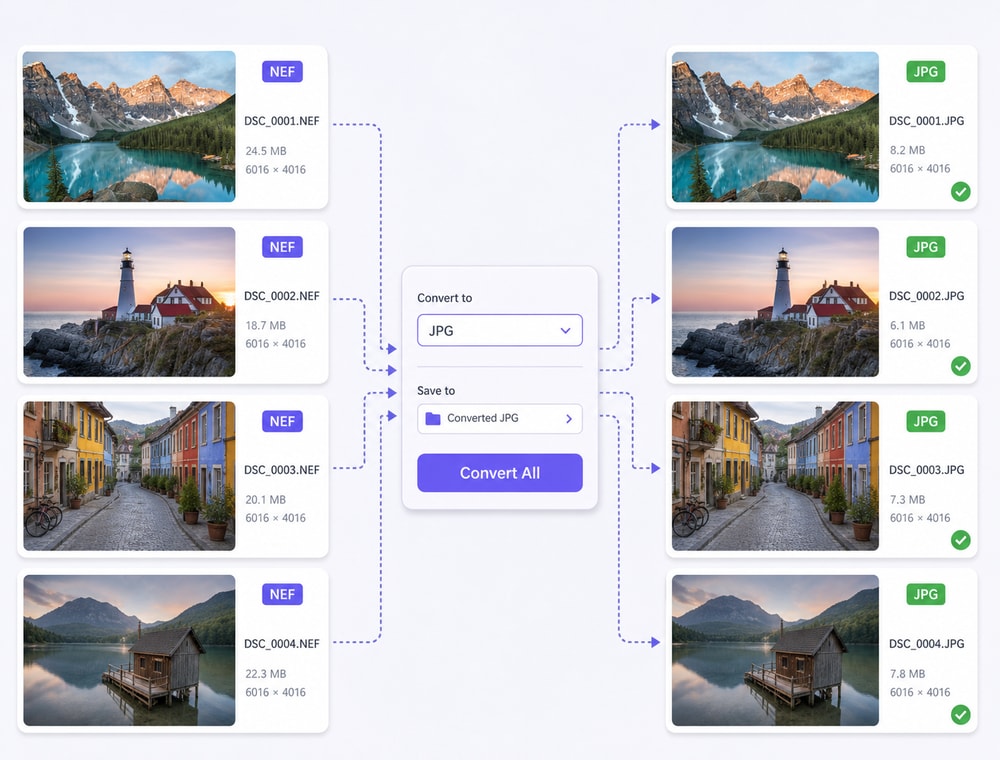
Apply a shared JPG output and destination

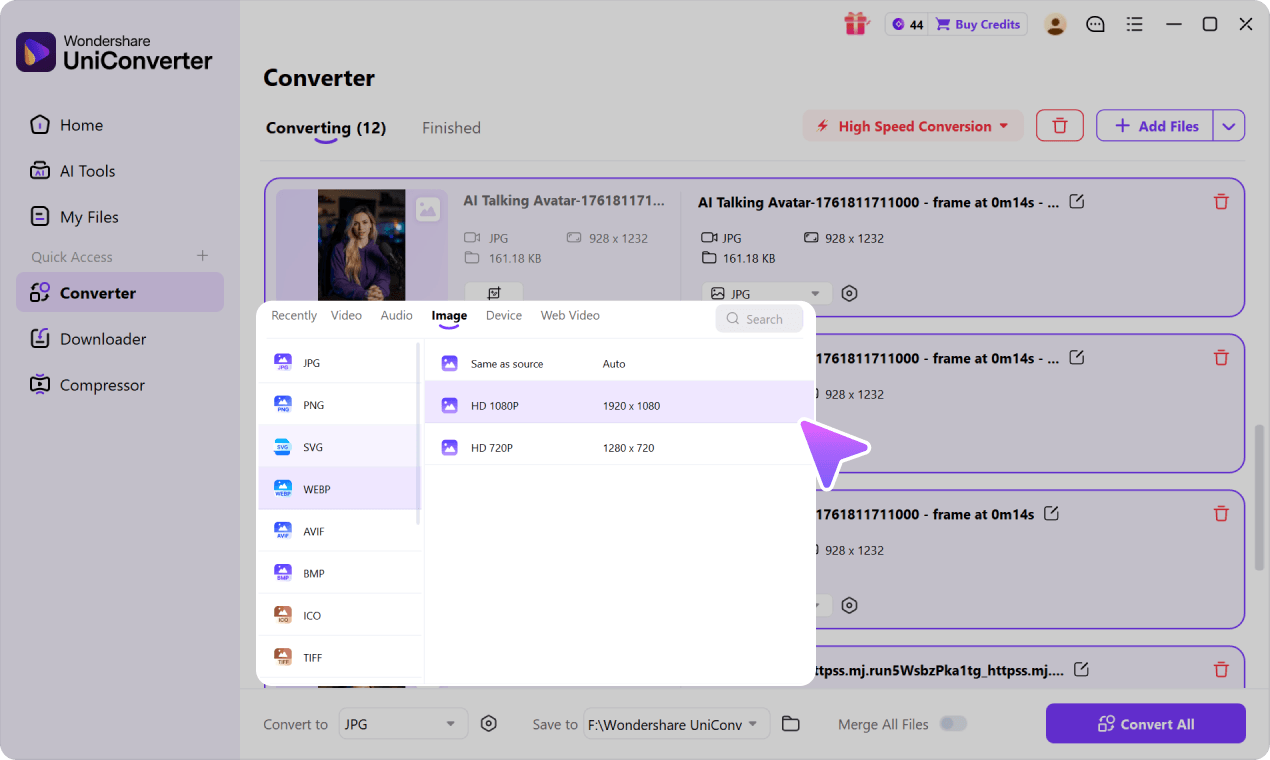
Set a common output choice and Save to folder for the collection, helping keep a client-review, submission, or sharing set together.

  • Choose supported JPG/JPEG output
  • Set one Save to destination for the queue
  • Process a consistent delivery-copy workflow
Apply a shared JPG output and destination

Handle available per-photo exceptions

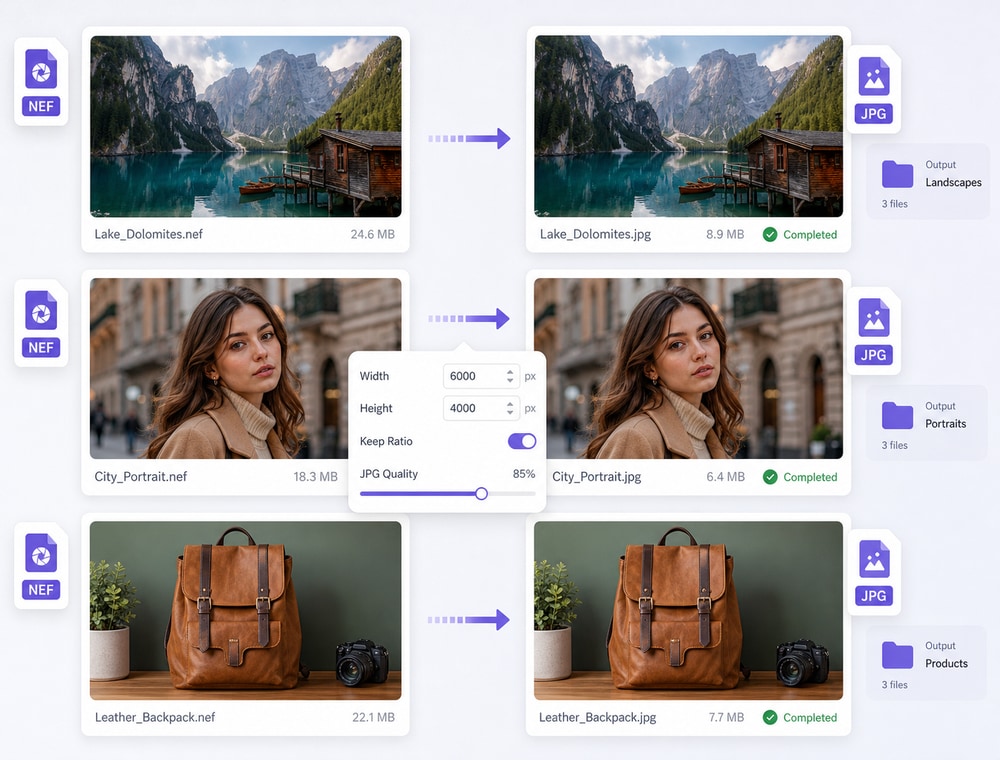
A queued image can use an available individual output selection and Quality Setting when one item needs different handling from the shared setup.

  • Use available per-file output-format choices
  • Keep original size or enter custom pixel dimensions
  • Keep aspect ratio where the setting is available

Input support is broader than output support and can differ between Windows, Mac, Online, and product versions.

Handle available per-photo exceptions

Create JPG copies without replacing RAW sources

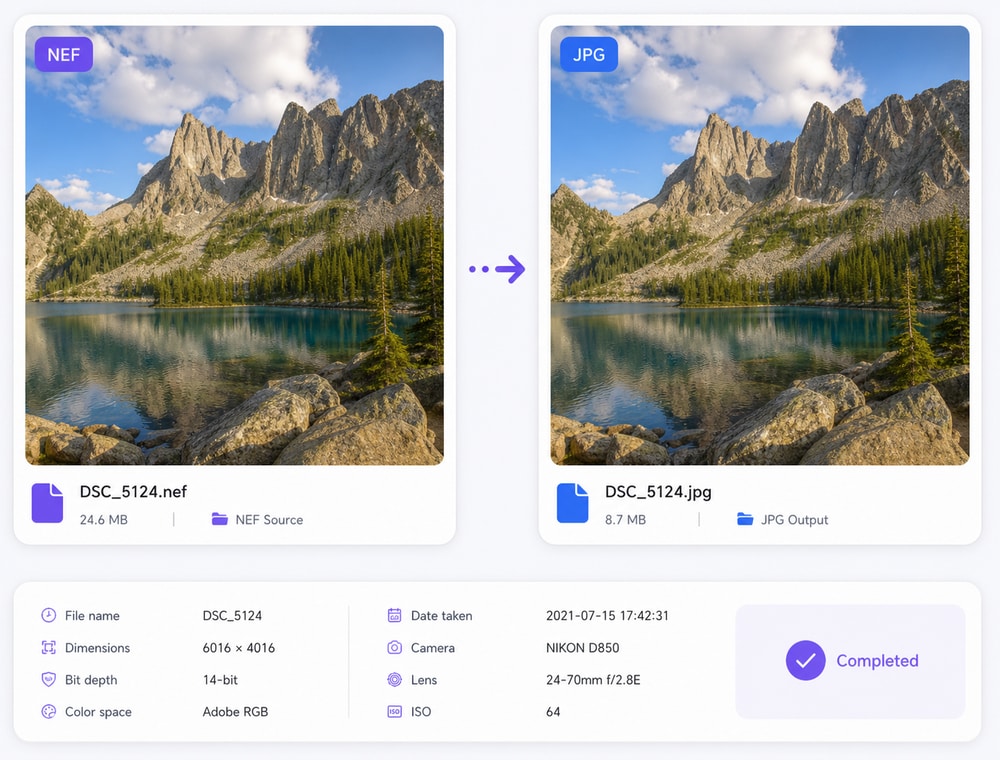
NEF is Nikon's RAW camera-image format, while JPG is a rendered, lossy delivery format. Convert selected photos for a recipient or destination while retaining original NEF files for possible future RAW work.

  • Use JPG copies for sharing, review, or submission workflows
  • Review results before client, publication, or upload use
  • Retain original NEF files when future RAW editing may be needed
  • Use Batch Image Enhancer separately for restoration or enhancement tasks

Image Converter handles format conversion. These additional operations belong to Batch Image Editor.

Create JPG copies without replacing RAW sources

Shared JPG Output, Save Folder, and Available Per-File Controls

In Wondershare UniConverter Image Converter, select one supported JPG/JPEG output format and one Save to destination folder for a queued collection, then use available per-file output choices when an item needs an exception. Per-image Quality Setting options include original size, custom pixel dimensions, aspect-ratio handling, and a quality control when JPG is selected. Output formats, controls, and NEF support can differ by operating system and UniConverter version.

Key differences between the source and output image formats
Conversion fact

Technical references: and .

Common ImagesModern & WebCamera RAWDesign & Pro

Format availability may vary by operating system and UniConverter version. See the UniConverter Tech Specs for current image format support and system requirements.

When to Create JPG Copies
from a Nikon NEF Collection

Batch NEF-to-JPG conversion is useful when a downstream recipient or workflow needs JPG files, while the original Nikon RAW files remain available for future work.

Client review and proofing copies

Prepare selected images from a shoot as JPG copies for a client or collaborator, while retaining the NEF source collection for potential RAW adjustments later.

Event and travel photo sharing

Create a consistent JPG sharing set from selected Nikon event, trip, or family-session photos without preparing each file one at a time.

Marketplace, listing, or portal submissions

Convert supported NEF listing or contributor photos to separate JPG copies after checking the receiving destination's image requirements.

Studio and team handoff

Use one queue and a shared destination to prepare a selected Nikon RAW collection for a reviewer, designer, or publishing coordinator, with available per-file settings for exceptions.

What UniConverter Users Are Saying

These reviews describe users' experience with Wondershare UniConverter as a broader conversion and editing product, rather than feedback specifically limited to the Batch Image Converter. Review sources and publication dates are shown where available.

★★★★★

“Very configurable for the exact result you need.”

Its flexible conversion controls make it easier to prepare files for different output and delivery requirements.
JohnsonJohnson
★★★★★

“The files can be used across IT platforms so easily!”

This kind of compatibility is useful when converted media needs to move between common systems and delivery workflows.
WilliamsWilliams
★★★★★

“Wondershare UniConverter is incredibly versatile.”

The broader conversion and editing toolkit supports users who need to complete more than one isolated media task.
OliviaOlivia

Explore UniConverter reviews and independent coverage across trusted software platforms.

Batch NEF to JPG Converter FAQs

01

Can I batch convert NEF to JPG with Wondershare UniConverter?

Yes, when NEF is supported as an Image Converter input and JPG/JPEG is available as an output on your installed Wondershare UniConverter version and operating system. Add supported files to one desktop queue, choose shared output and a save folder, then process the collection.
Open Wondershare UniConverter Image Converter, add supported NEF files or a supported folder, choose JPG/JPEG output and a Save to location, review available settings, and process the queue. Inspect the resulting JPG copies before important delivery or upload use.
Image Converter can add supported image folders. Confirm that folder intake, the NEF files in that folder, and JPG/JPEG output are supported on your operating system and UniConverter version before starting a large conversion task.
In the current interface, a per-image quality control is available when JPG is selected. Quality Setting also includes original-size, custom-dimension, and aspect-ratio options. JPG appearance and file size depend on the NEF source and the settings you select.
NEF-to-JPG conversion changes the format, and JPG uses lossy compression. It does not preserve every RAW-editing capability or guarantee identical results. Review converted files for your intended use and retain the original NEF files when future RAW editing or another output workflow may be needed.
Image Converter focuses on format conversion and includes lightweight Crop, Effect, and Watermark controls where available. Use Batch Image Editor for resize, broader editing, background removal or replacement, and complete watermark workflows. Use Batch Image Enhancer for restoration and enhancement tasks.
vc 16

Prepare Supported Nikon NEF Photos as JPG Delivery Copies

Use Wondershare UniConverter Image Converter to organize supported NEF files in one desktop queue, choose JPG/JPEG output and a destination folder, and review available per-image settings before conversion.

Prepare Supported Nikon NEF Photos as JPG Delivery Copies