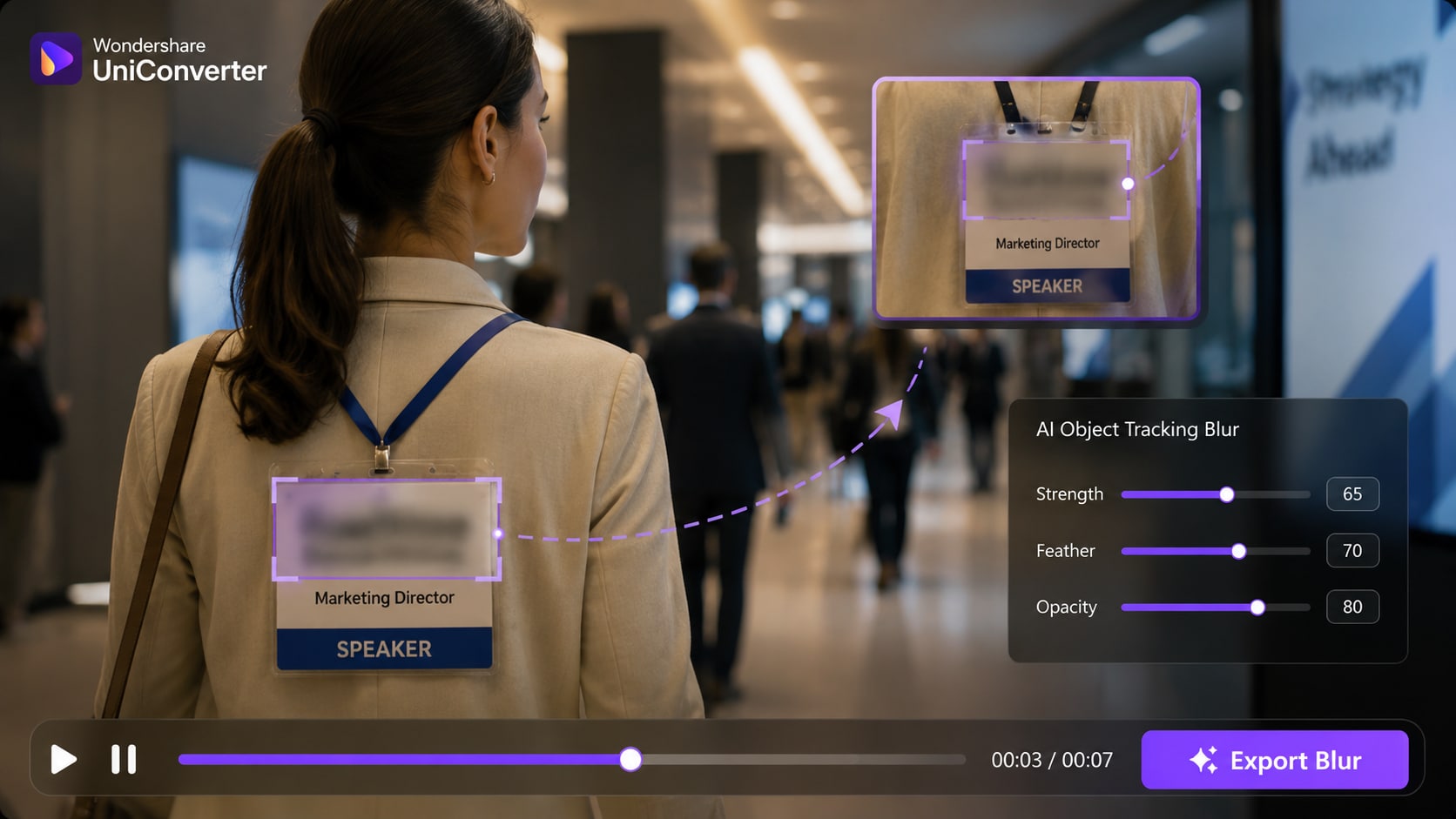
Static Logo Blur
Hide a fixed corner logo or brand mark while keeping the rest of the video clear.
Handle common video logo blur tasks—from a fixed corner logo to a moving watermark, product label, screen overlay, or distracting mark in the background.
Hide a fixed corner logo or brand mark while keeping the rest of the video clear.
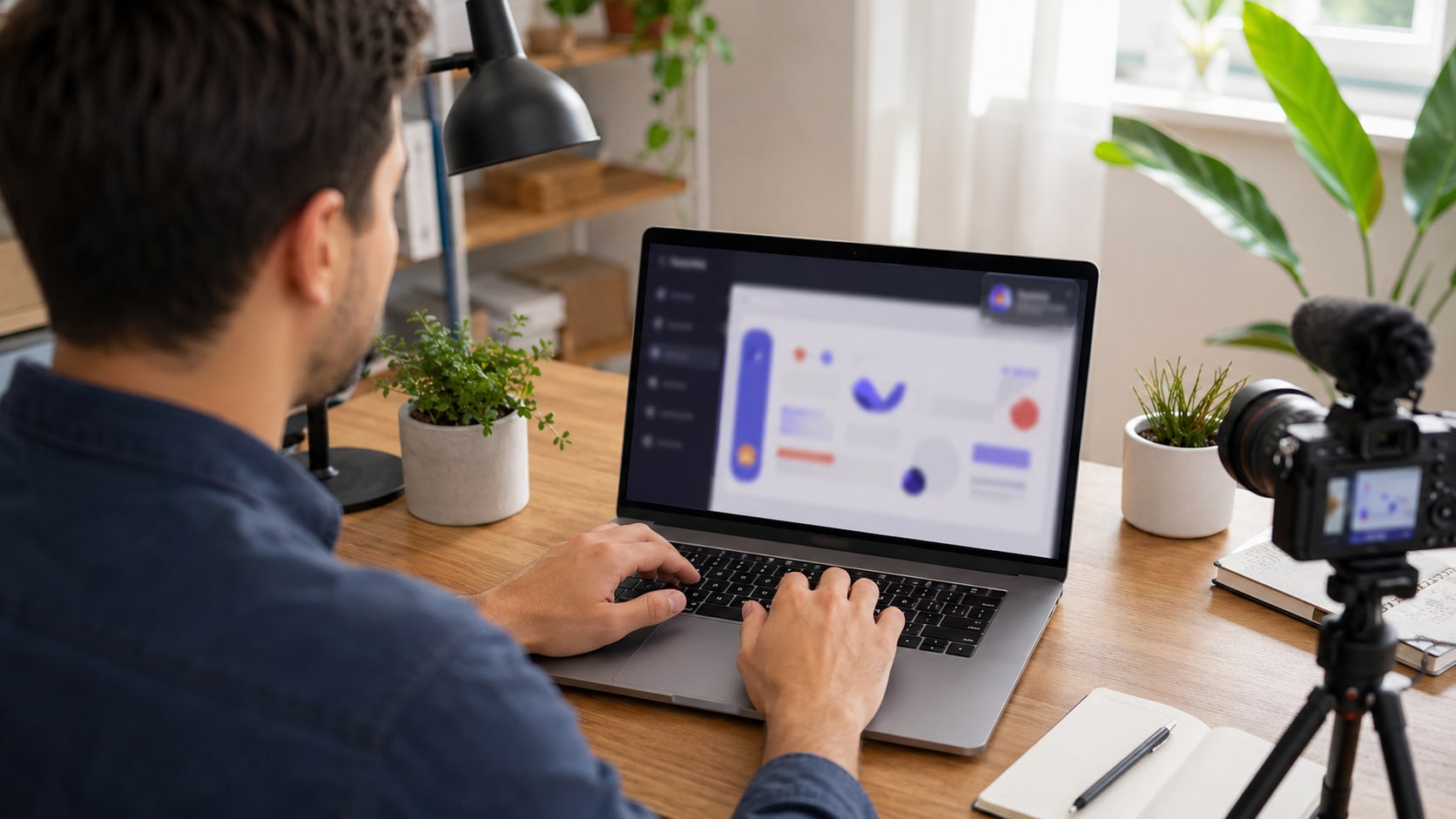
Track a logo attached to a moving product, presenter, vehicle, or camera shot.
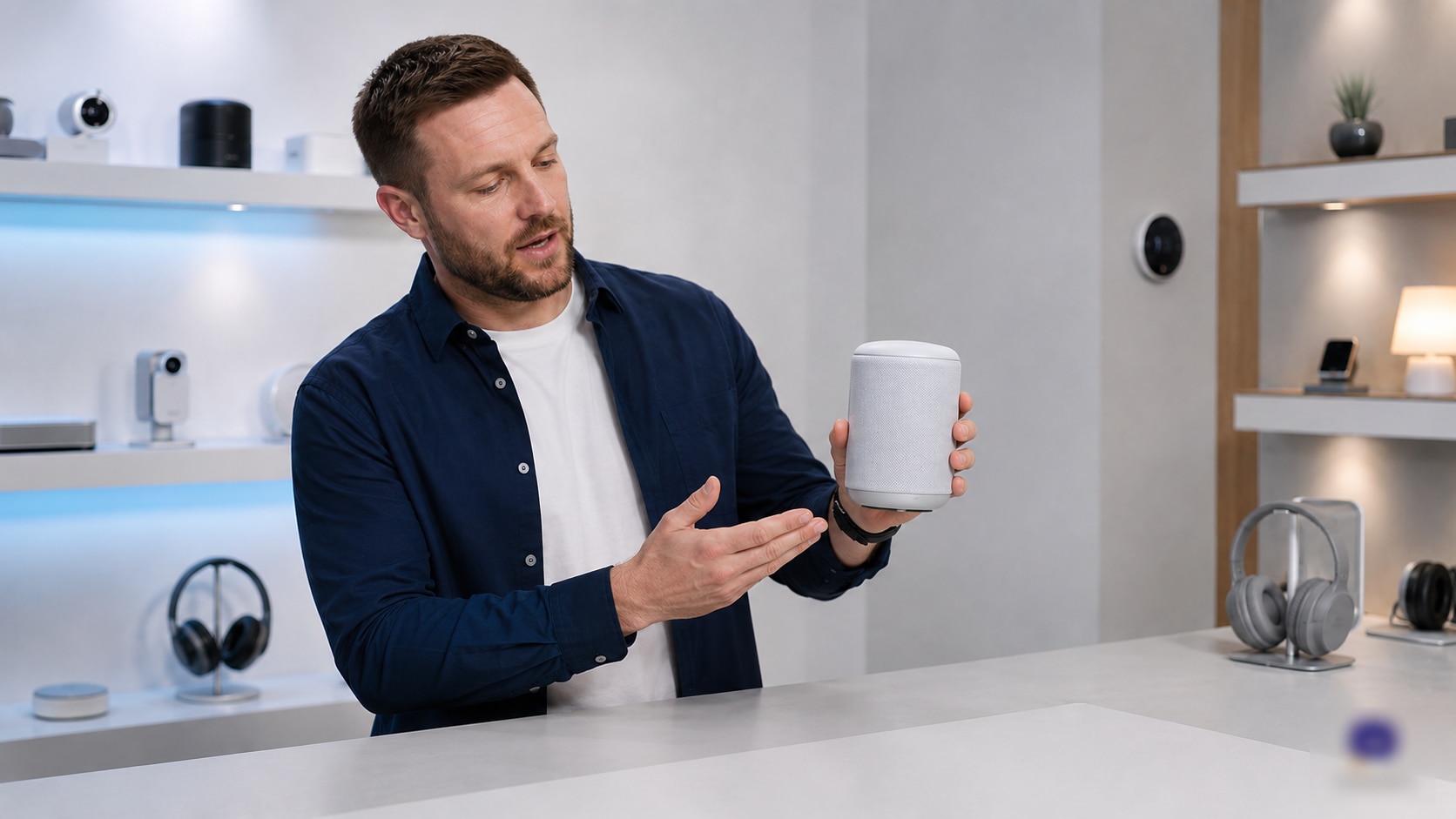
Conceal a visible watermark or platform mark before an authorized video is shared.
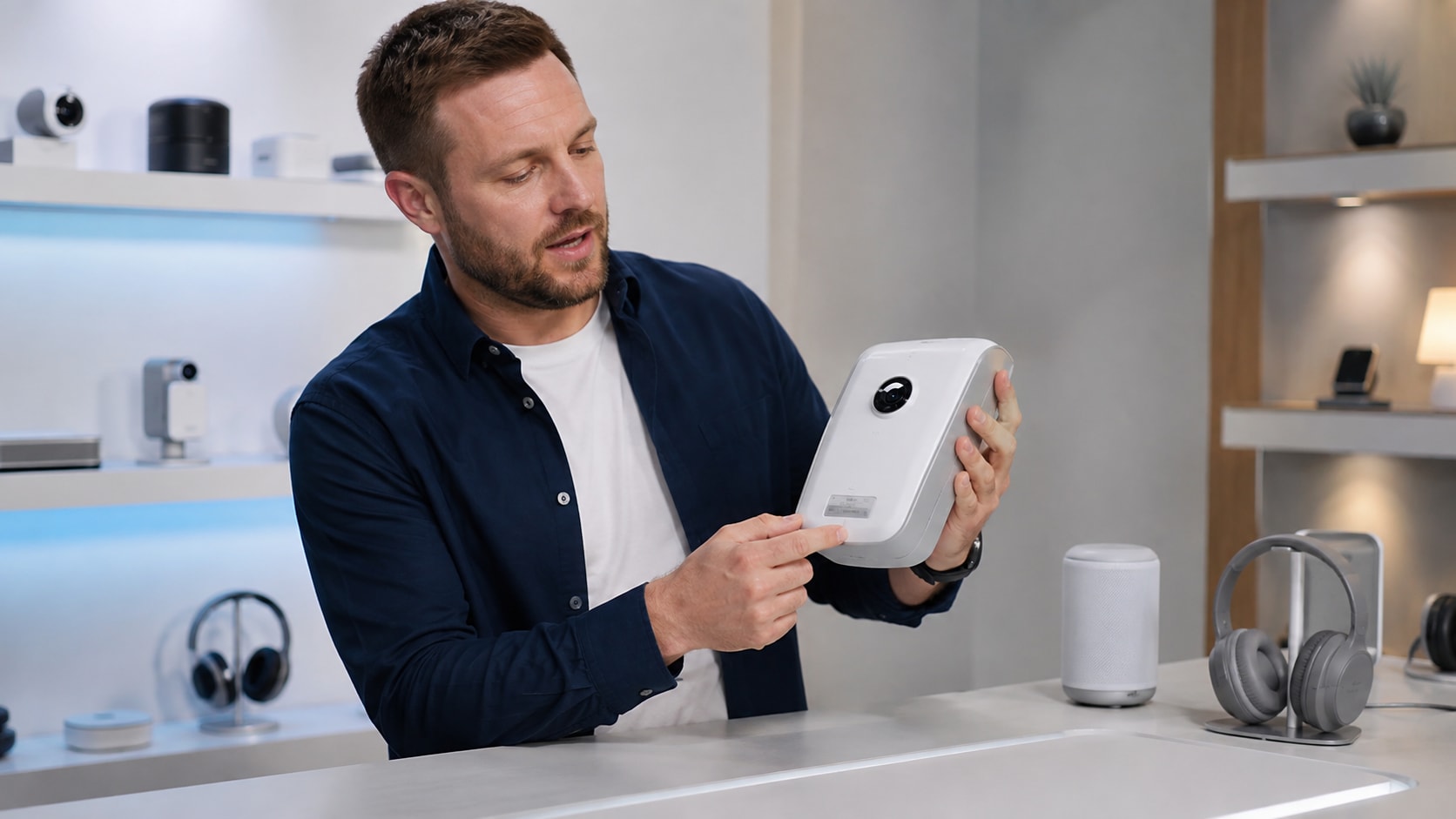
Hide unreleased branding, serial numbers, prices, or confidential product details.
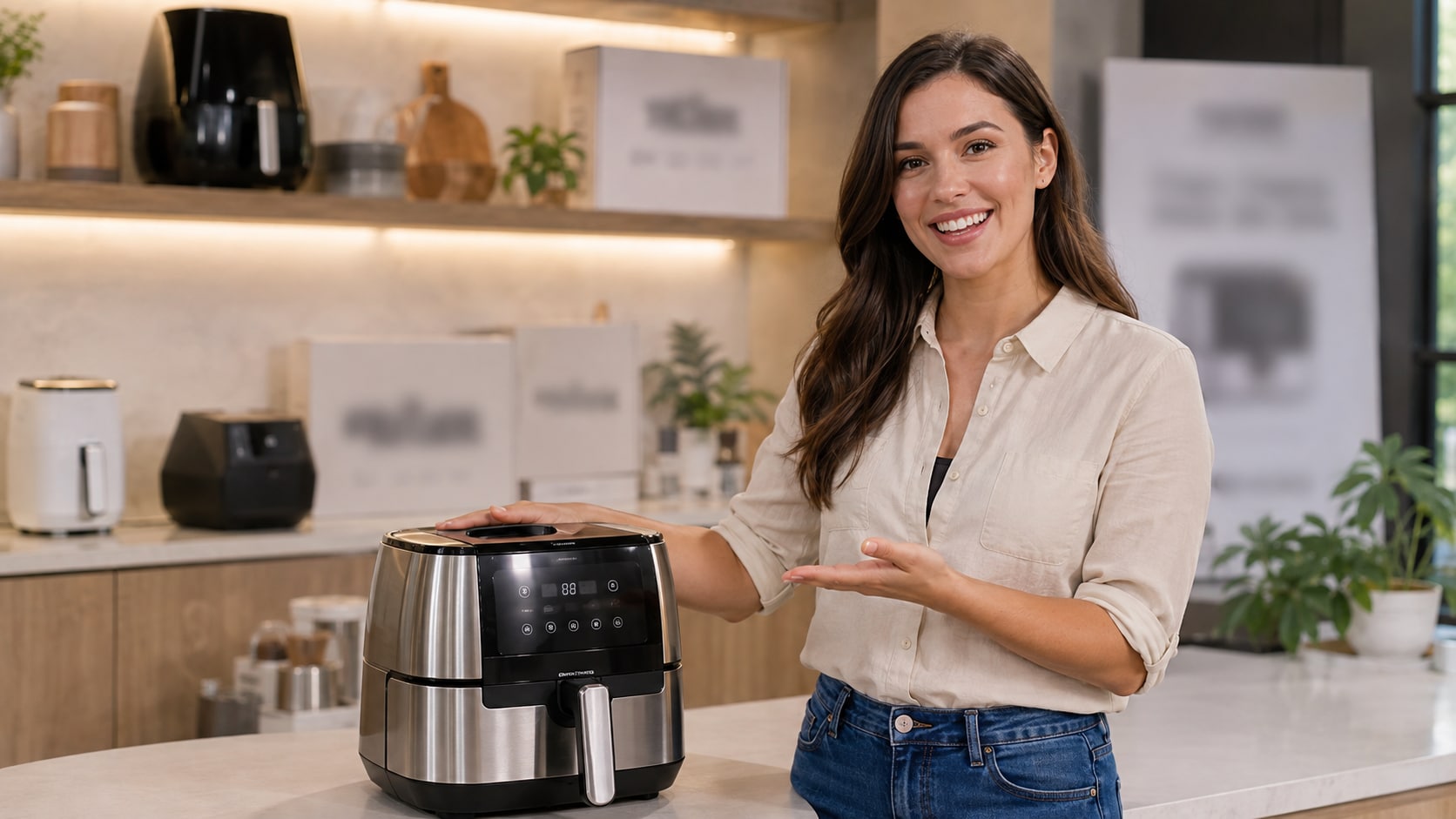
Blur app logos, usernames, platform overlays, and other visible marks in recordings.
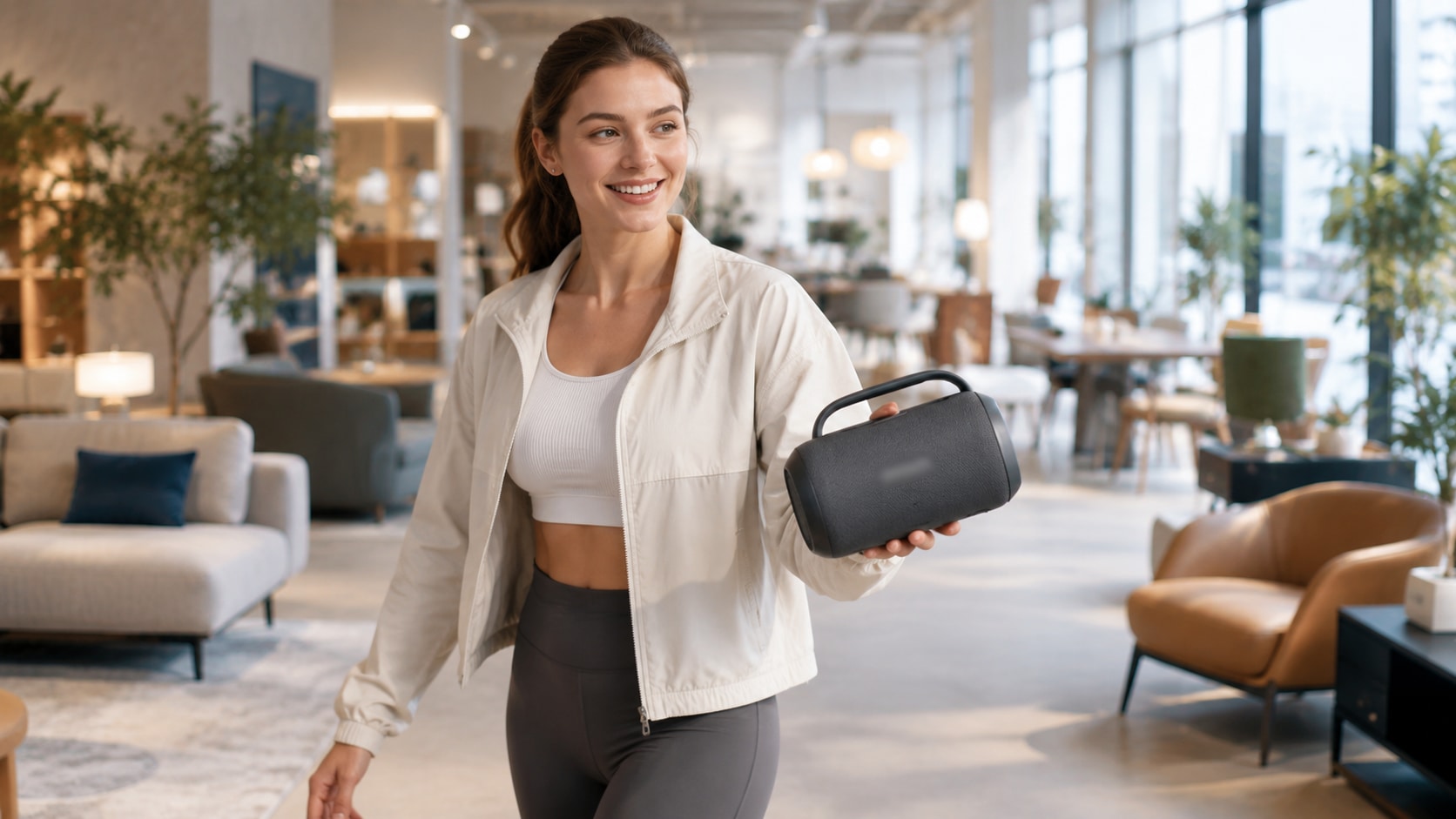
Keep the main subject sharp while softening logos and distracting brand details behind it.
When a logo changes position or the camera moves, object tracking helps keep the selected area covered. Use the controls to match the result to your footage.
Use Object Tracking Blur mode to draw a box around the logo, watermark, label, or brand mark you need to hide. Resize the selection so it covers the logo and its edges, then let AI follow the target through the clip.
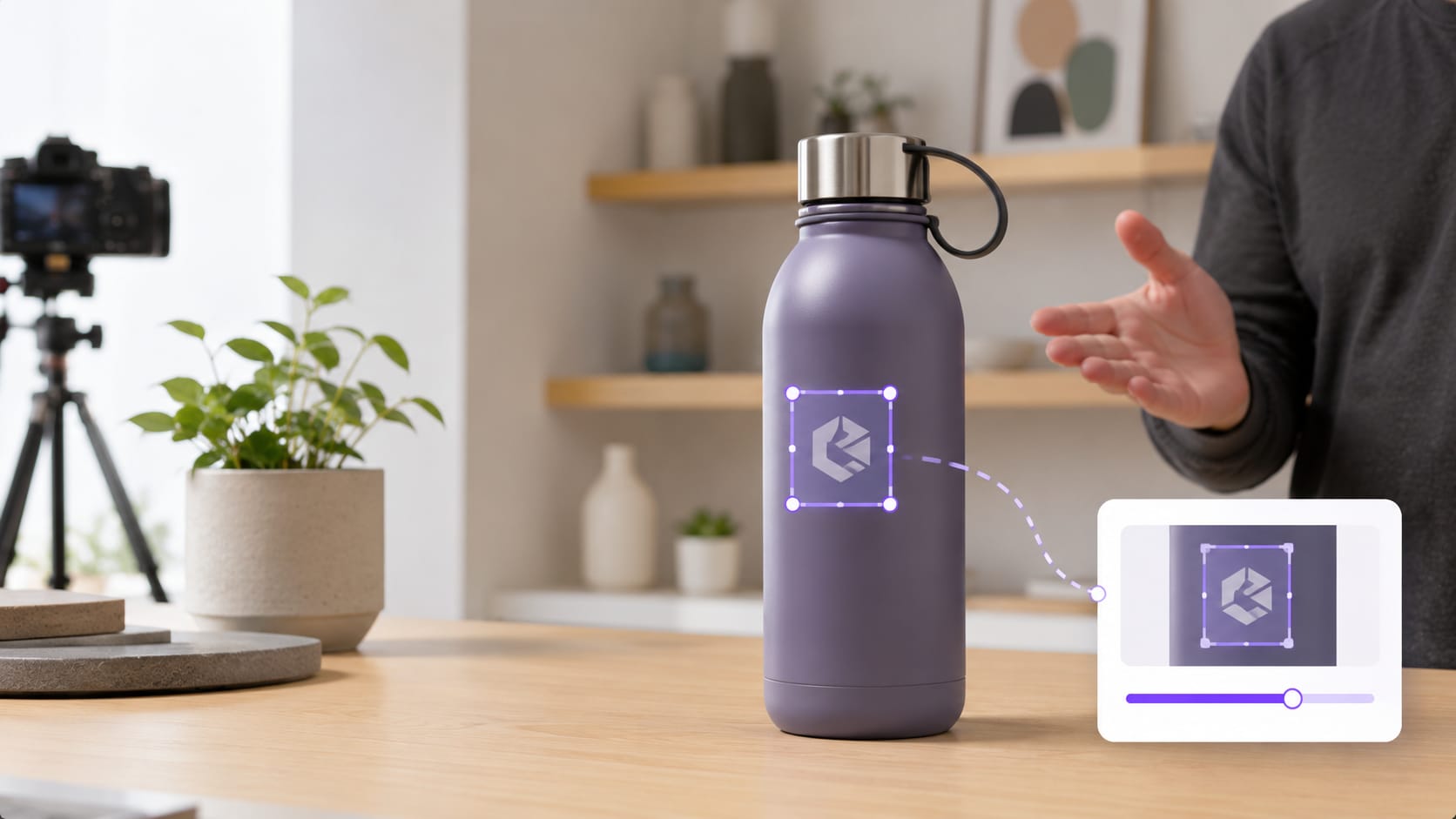
Traditional video logo blur often means repositioning a mask whenever the target moves. UniConverter AI Video Blur tracks the selected object so the blur stays aligned as the logo shifts, rotates, or travels across the frame.

Use a soft blur when the effect should blend into the footage, or choose Mosaic and Pixelate when viewers should immediately understand that the logo is hidden. UniConverter also includes Particle, Smear, Pastel, Sketch, Horizontal, Cross, Ink, and Paint styles.
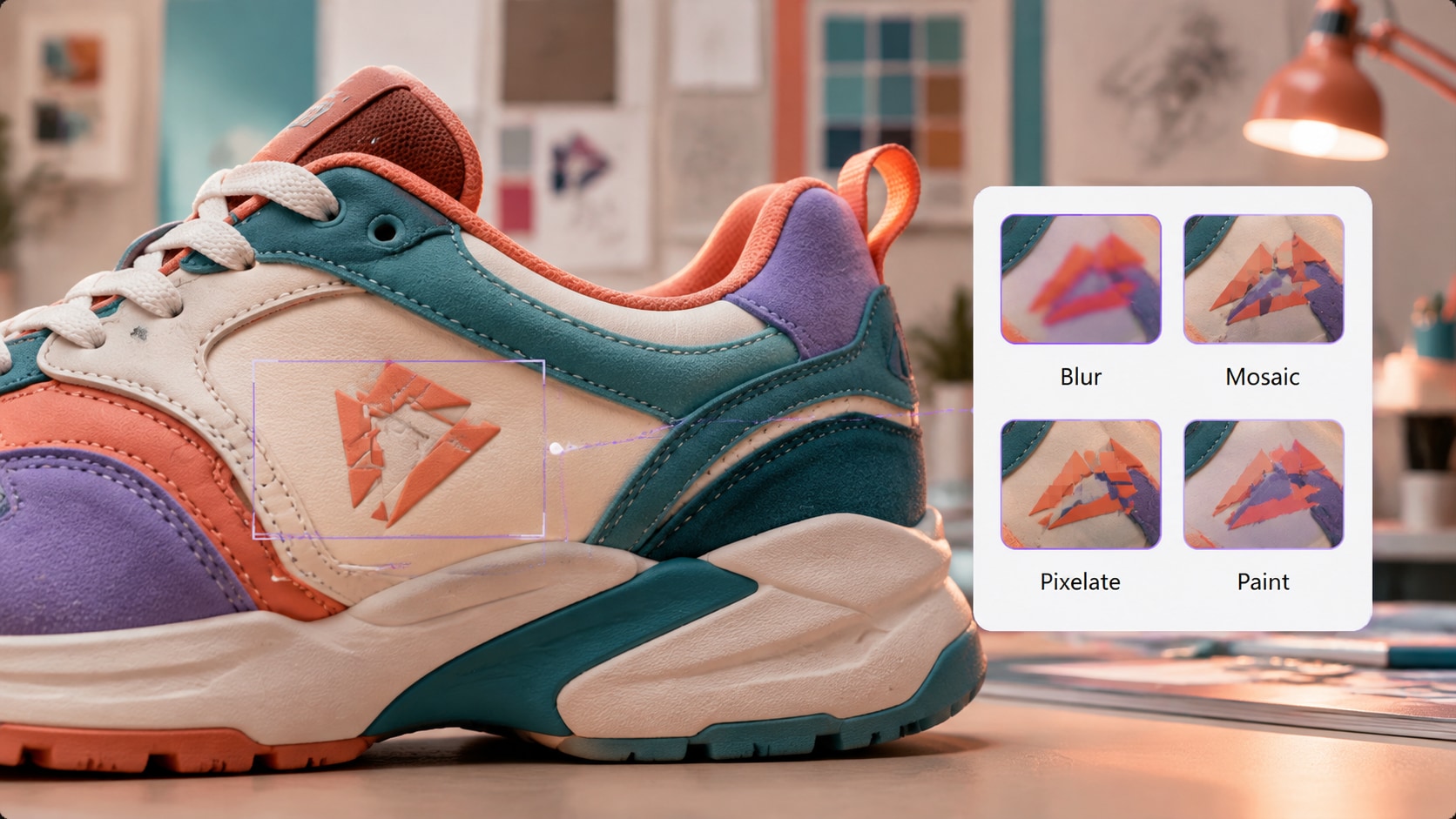
Logo visibility and background detail vary from clip to clip. Adjust Strength for stronger coverage, Feather for softer edges, and Opacity for a lighter or more solid result.
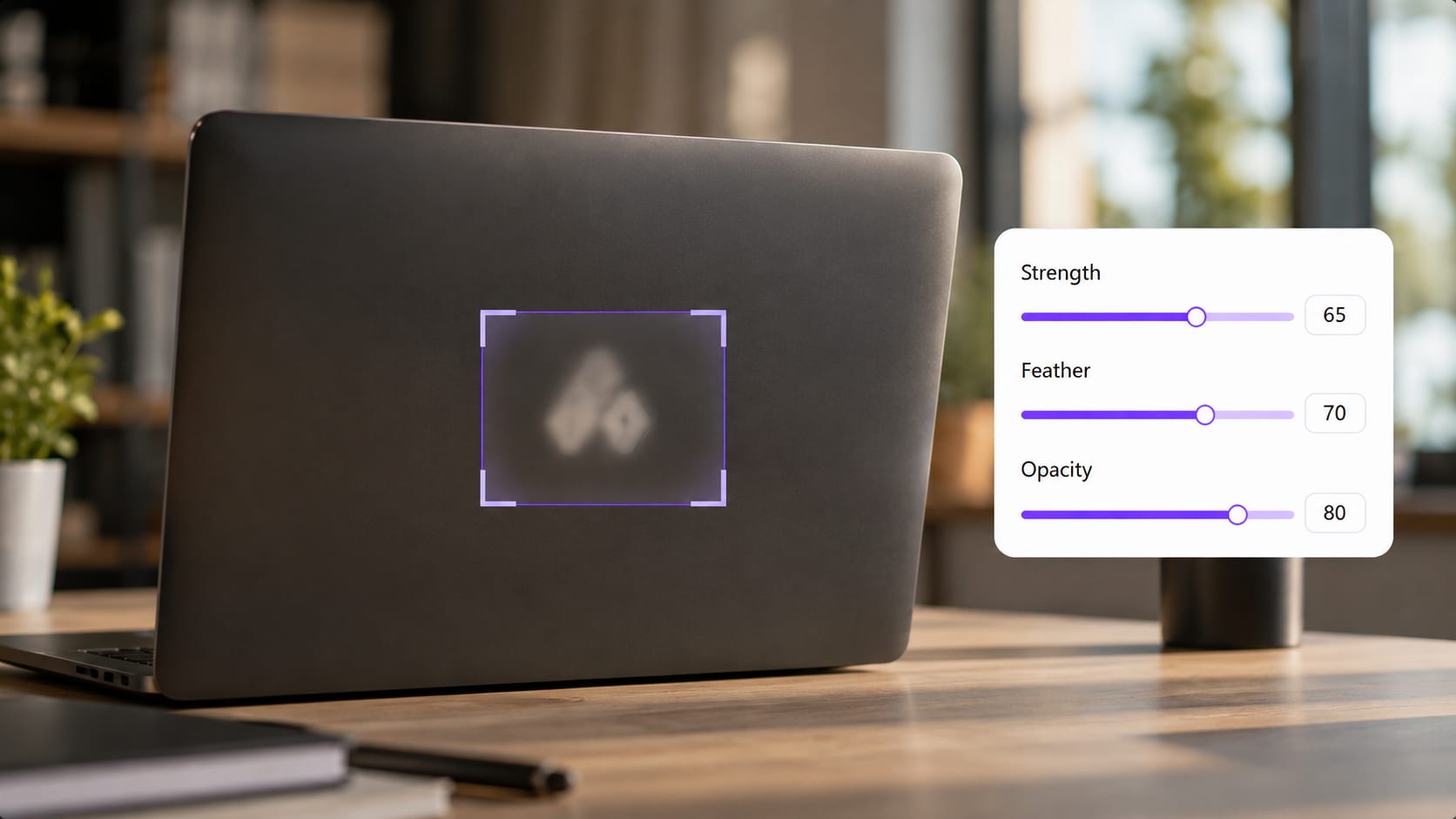
Check the result before creating the final file. Review whether the logo remains covered throughout the shot, whether the selection includes its edges, and whether the chosen effect fits the surrounding frame.
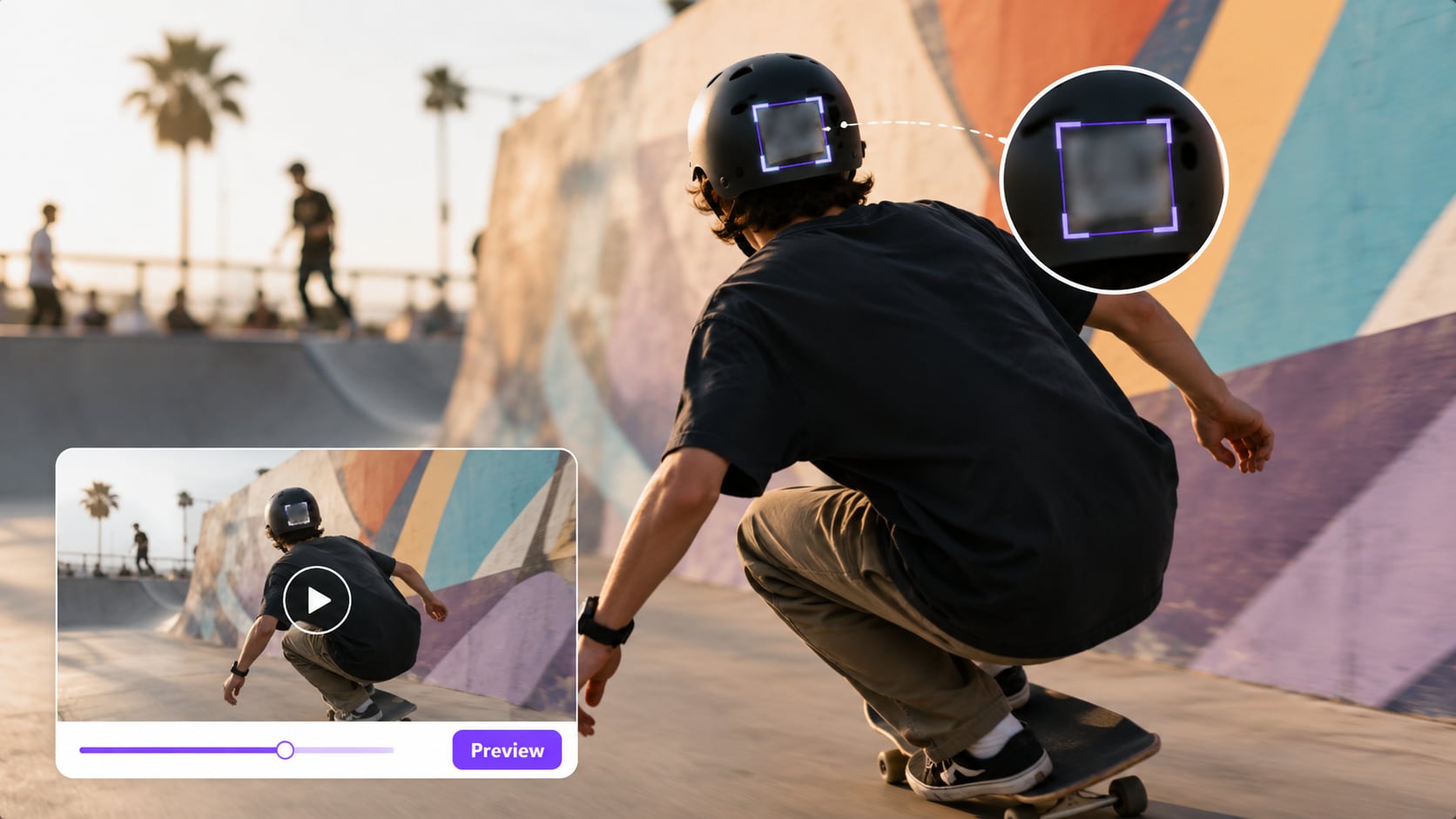
Use Object Tracking Blur to select a logo, keep the blur attached as it moves, and preview the video before export.

Open AI Video Blur and add one or multiple videos. Select the clip that contains the logo, watermark, or brand detail you want to hide.

Choose Object Tracking Blur, draw a box around the logo, resize it to cover the complete mark, then select a blur style and fine-tune the effect.

Preview the logo blur coverage as the target moves. If the logo is hidden correctly, choose a save location and export the processed video.
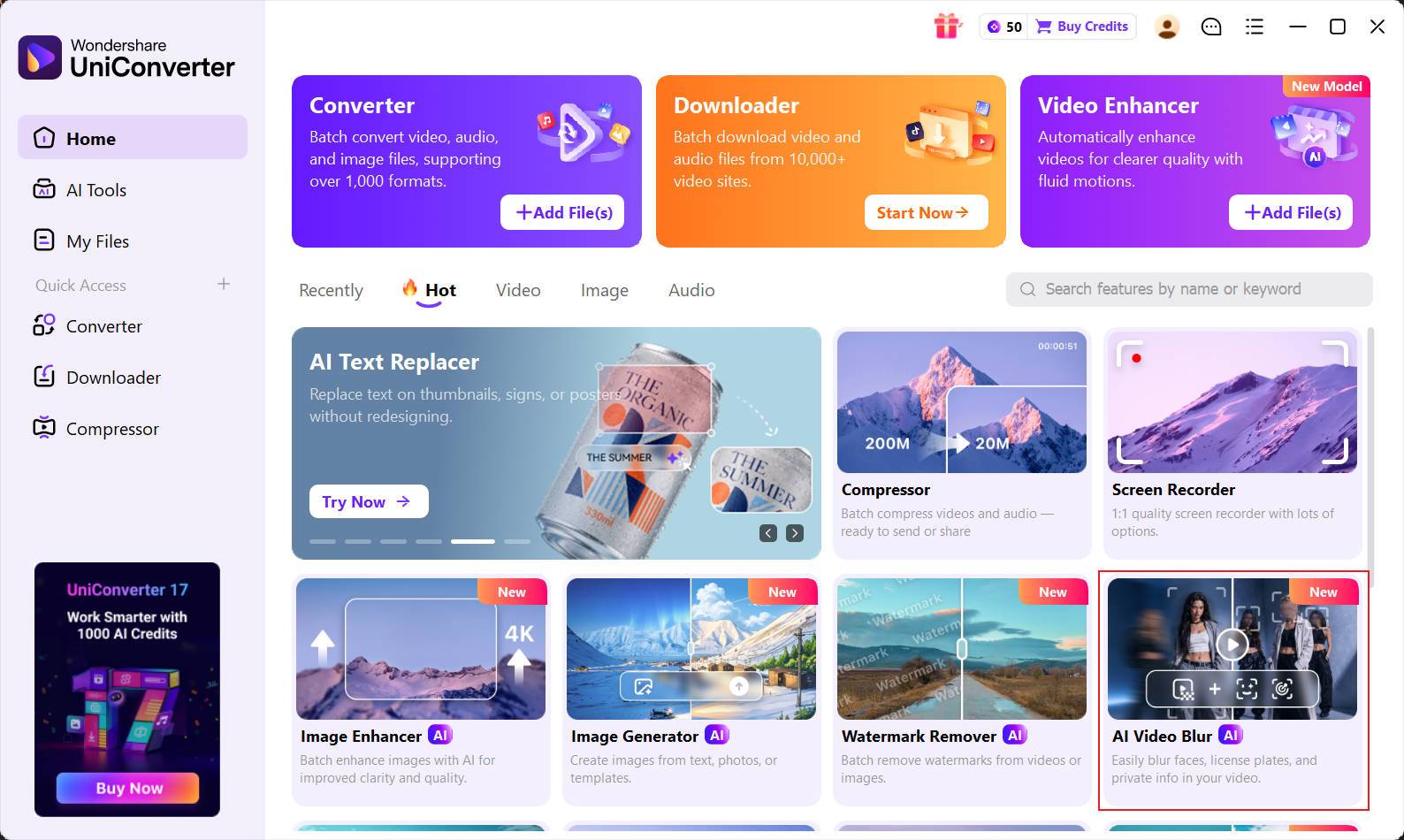
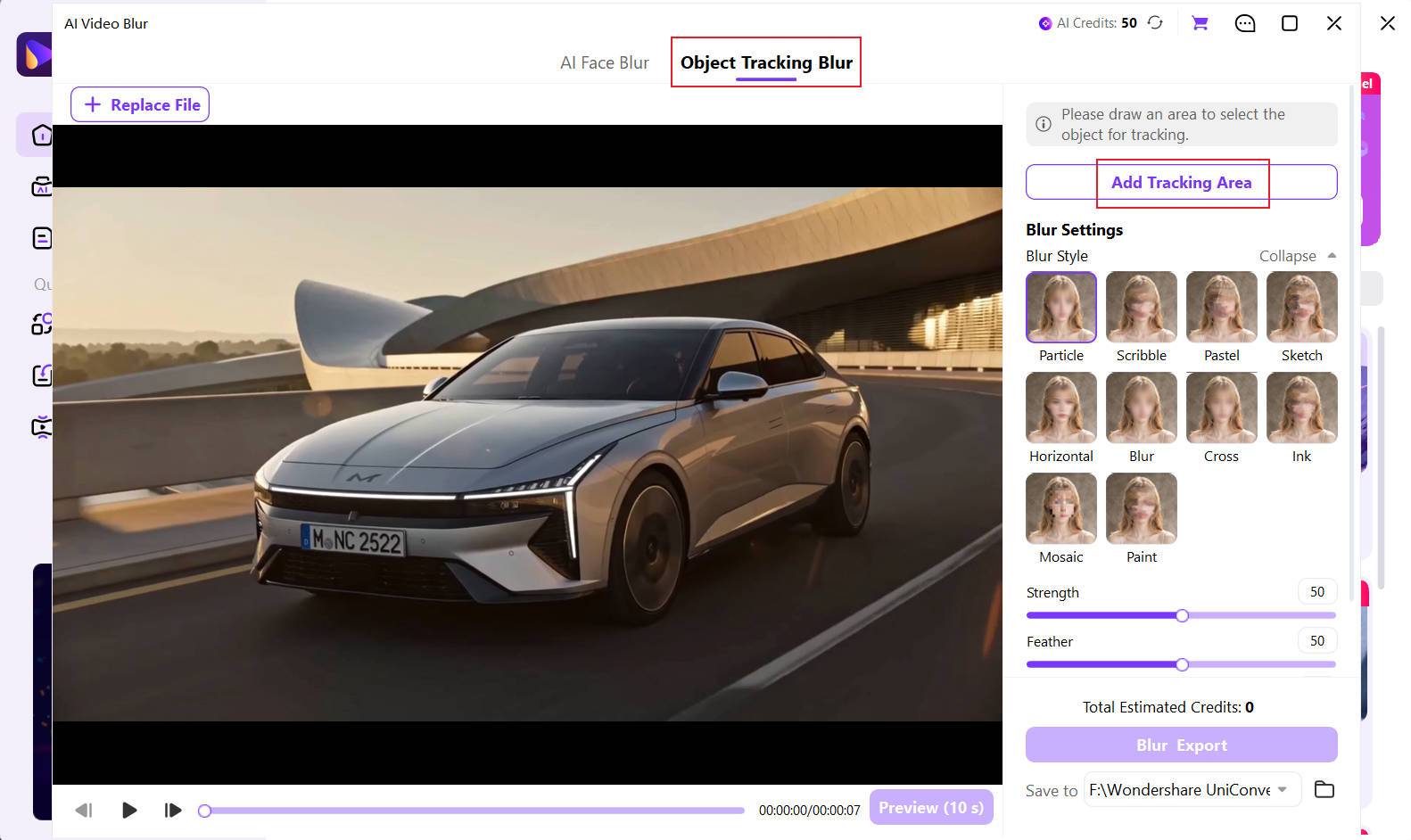
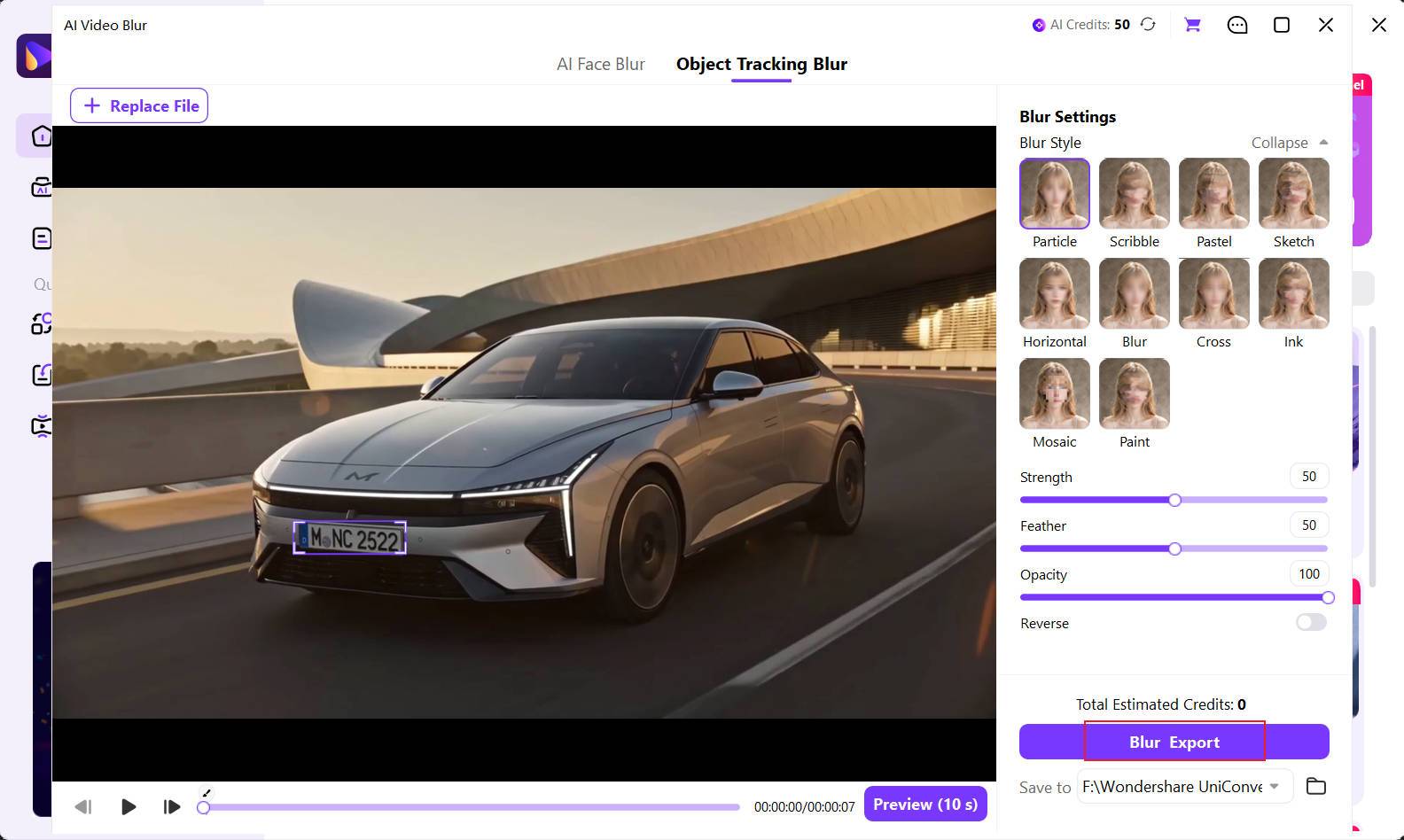
Use selected-object tracking to conceal logos, watermarks, labels, and brand marks in product footage, screen recordings, public clips, business videos, and social content.
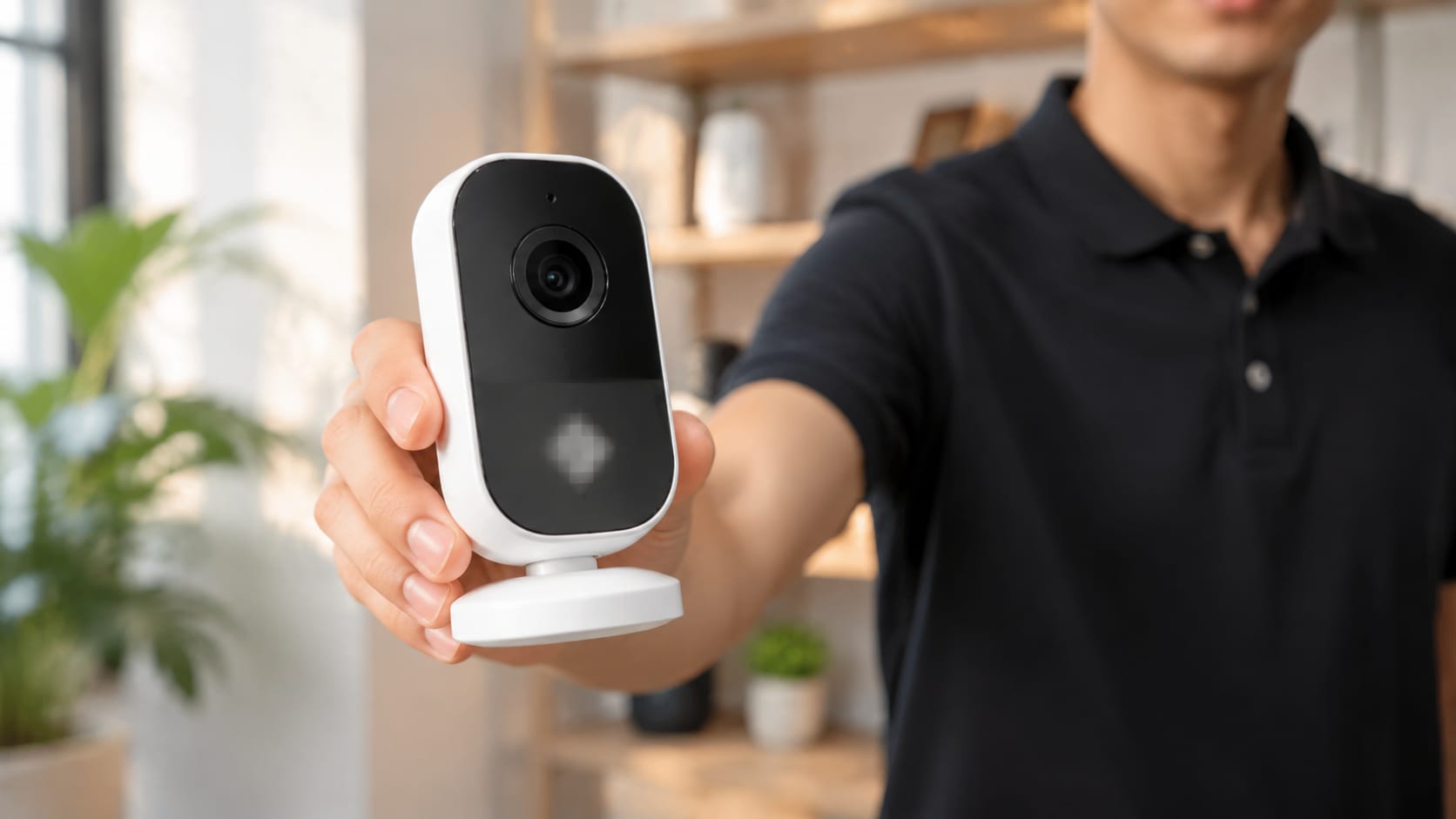
Blur unreleased designs, serial numbers, prices, brand labels, or confidential product details while the presenter moves the item.
Compare the work involved in hiding a logo, watermark, or brand mark when the target moves or the original footage contains sensitive information.
| Capability | UniConverter AI Video Blur | Typical Online Blur Tool | Traditional Video Editor |
|---|---|---|---|
| Blur a selected logo instead of the full frame | ✓ Precise object selection | Varies by tool | ✓ Possible with masks |
| Track a moving logo automatically | ✓ AI object tracking | Available in some tools | Possible, often with more setup |
| Hide a logo without frame-by-frame keyframes | ✓ Select once and track | Depends on the tool | Often requires manual keyframes |
| Blur, mosaic, pixelate & creative styles | ✓ Multiple Blur Styles | Often a smaller effect set | ✓ Flexible |
| Fine-tune logo blur coverage | ✓ Strength, feather & opacity | Varies by tool | ✓ Usually available |
| Process multiple videos in one workflow | ✓ Batch workflow | Often limited by file size, count, or plan | Depends on the editor and workflow |
| Keep unblurred source footage off third-party sites | ✓ Local desktop processing | Usually browser or cloud based | ✓ Available in desktop editors |
| Preview before final export | ✓ Built in | Varies by tool | ✓ Available |
| Continue editing after blurring | ✓ Convert, compress, trim & enhance | Usually focused on one browser task | ✓ Editing-focused workflow |
“Typical Online Blur Tool” refers to common browser-based workflows. Upload requirements, object tracking, file-size limits, batch processing, and privacy handling vary by provider.
Logo blur is one step in a larger desktop workflow. After the mark is concealed, keep converting, compressing, trimming, editing, enhancing, and exporting in UniConverter.
Work with sensitive source footage on your desktop instead of repeatedly uploading an unblurred logo or watermark to an unfamiliar online tool. UniConverter supports common formats for everyday video work.
Select the visible logo, apply the right video logo blur, preview the result, and continue with the finishing tasks your project needs.
Quick answers about blurring static and moving logos, watermarks, object tracking, styles, previews, and local processing.
Yes. Open Object Tracking Blur, draw a box around the logo, and let AI keep the blur attached to the selected area as the video plays.
Yes. Select the moving logo or watermark once, and AI tracks the target through the shot so you do not have to reposition the blur frame by frame.
No. UniConverter AI Video Blur is designed to track a selected moving object without manual frame-by-frame keyframes.
Yes, when you have the right to edit or republish the footage. Select the visible watermark with Object Tracking Blur and preview the coverage before export.
Yes. Create separate selections for logos or details that appear in different areas or move differently, then review the combined coverage before export.
Yes. Object Tracking Blur targets the selected region, so the rest of the frame can remain clear. Resize the selection to include the logo and its edges.
Yes. Choose from Blur, Mosaic, Pixelate, Particle, Smear, Pastel, Sketch, Horizontal, Cross, Ink, and Paint, then adjust Strength, Feather, and Opacity. Sticker is planned for V18.
AI automatically detects faces. For logos, watermarks, labels, screens, and other non-face details, you select the target area first and AI tracks it afterward.
Yes. AI Video Blur runs in the UniConverter desktop workflow on Windows and macOS, so your unblurred source footage does not need to be uploaded to an unfamiliar online blur site.
Yes. Preview the tracking and coverage first. If the logo is not fully hidden, change the selection, style, Strength, Feather, or Opacity before exporting.

Select a logo, follow it through the clip, choose the right blur style, and preview coverage before exporting from your desktop.